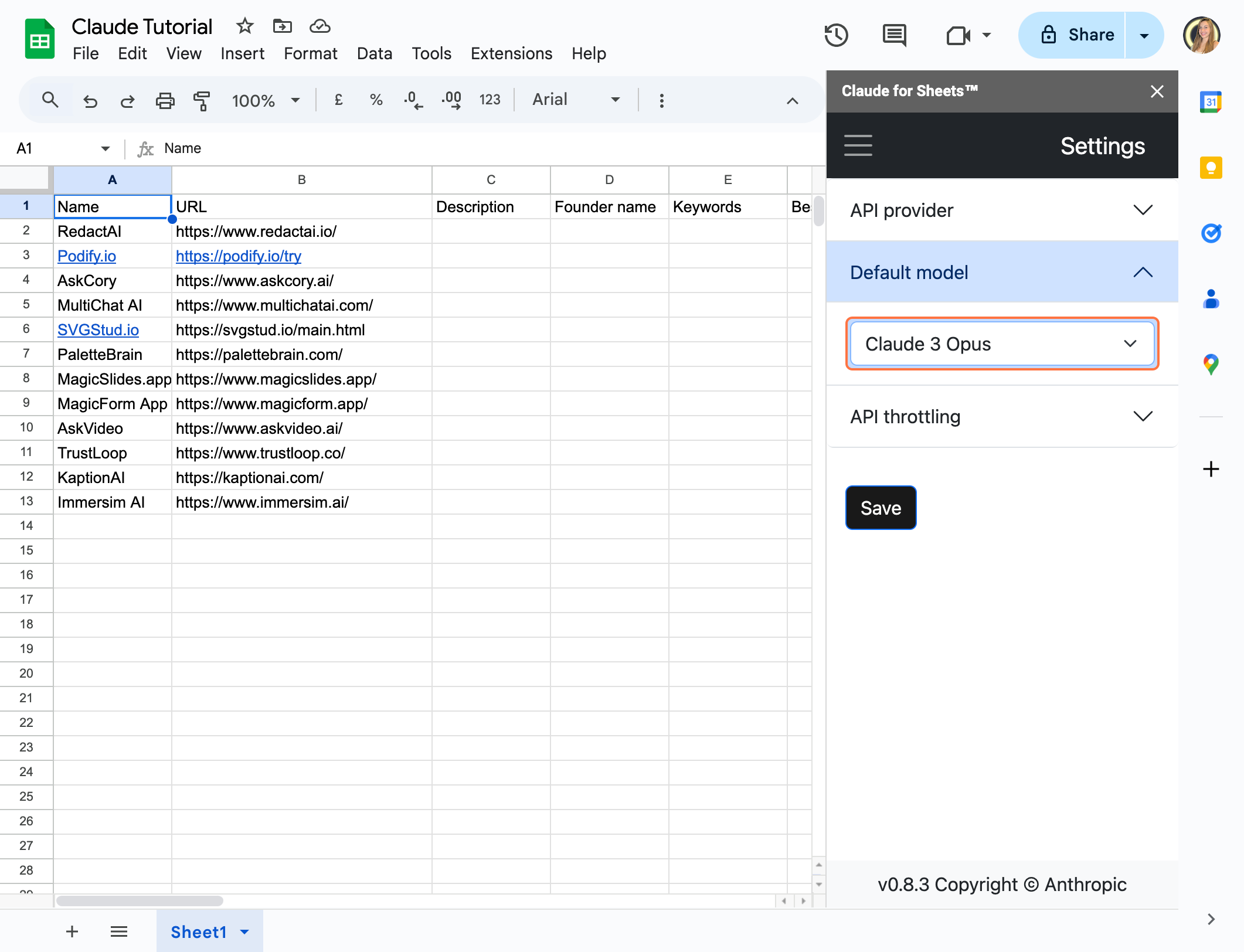
Description:
This guide shows you how to use Claude AI with Google Sheets to classify large lists of subcategories into broader categories effortlessly. By leveraging Claude’s natural language processing capabilities, you can automate data classification directly in your spreadsheet. Whether you’re organizing campaign keywords, sorting e-commerce product categories, grouping user feedback, or managing datasets, this workflow simplifies the process, saving time and improving accuracy. Ideal for marketers, product managers, e-commerce teams, content creators, recruiters, and anyone dealing with data that needs structured organization.
Who It’s For:
This workflow is useful for:
- Marketers: Organizing campaign keywords or audience segments into broader groups.
- Product Managers: Categorizing features or user feedback into themes for analysis.
- E-commerce Teams: Sorting product subcategories into main categories for inventory or catalog management.
- Content Creators: Grouping article or video topics under broader content pillars.
- Recruiters: Classifying job roles or skills into department categories for hiring insights.
- Customer Support Teams: Sorting customer queries or issues into predefined categories for reporting.
- Data Analysts: Streamlining classification for large datasets in research or reporting.
- Educators: Grouping student responses, topics, or learning objectives for easier organization.
Time to Value:
10-15 minutes to set up and start classifying.
Tools Needed:
- Claude API
- Google Sheets